> ## Documentation Index
> Fetch the complete documentation index at: https://docs.dataville.com/llms.txt
> Use this file to discover all available pages before exploring further.
# Connected data
> Bring a Google Sheet into Dataville and query it alongside the public sources.
Connected data lets you bring your own spreadsheet into Dataville and treat it like any other source: query it with SQL in Data Studio, search it from the API, and join it against the public sources. Each connected sheet is one tab of one Google Sheet, and Dataville keeps it in sync with the original.
Queries and searches against a connected sheet don't use credits. Rows a sheet contributes to a cross-source query are charged like any other row. See [Plans and credits](/plans-and-credits).
## Connecting a sheet
On the [Data Library](https://app.dataville.com/datasets?category=your-data) page, open the **Your Data** tab and click **Connect Sheet**. Choose a spreadsheet in Google's file picker, and Dataville will ask which of its tabs to connect. If the card says "Connect your Google account to add sheets.", clicking it asks you to sign in to Google first. Then click **Connect Sheet** again.
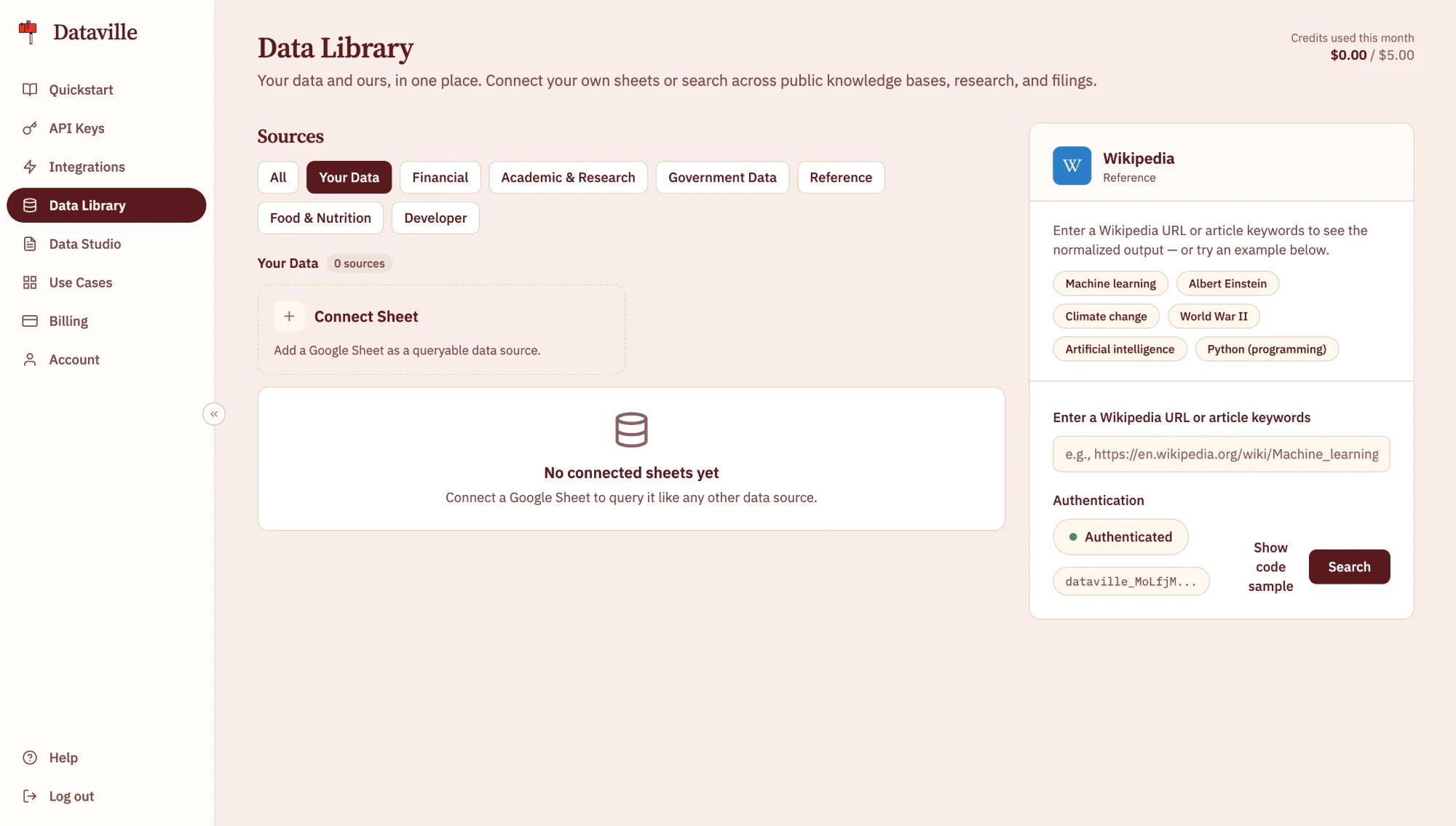 Dataville reads the tab and gives it a short slug based on its name. Once the first sync finishes, the sheet appears as a card under **Your Data**, with the spreadsheet's name, the tab's name, and its row count. You can connect up to 10 sheets.
## Keeping it in sync
Dataville re-reads each connected sheet every six hours. Each sync replaces the connected copy with the tab's current contents, so rows you delete or rename in the sheet disappear from Dataville too. To pick up a change sooner, select the sheet under **Your Data** and click **Sync now**, which you can do once every five minutes. To remove a sheet and its data from Dataville, click **Disconnect**.
## Querying a connected sheet
In Data Studio, a ready sheet appears in the source list alongside the public sources, as a table named `my_` followed by its slug. The SQL Query Playground includes the sheet whenever a query names its table. You can query it on its own or join it with public sources in the same statement.
From the API, the query and search endpoints accept your API key, so an application can read your sheet without a dashboard session. You connect, sync, and disconnect a sheet in the dashboard.
A `SELECT` over a single sheet.
Search every column without writing SQL.
Join a sheet with the public sources by passing its id.
This documentation is built and hosted on [Mintlify](https://mintlify.com), a developer documentation platform.
Dataville reads the tab and gives it a short slug based on its name. Once the first sync finishes, the sheet appears as a card under **Your Data**, with the spreadsheet's name, the tab's name, and its row count. You can connect up to 10 sheets.
## Keeping it in sync
Dataville re-reads each connected sheet every six hours. Each sync replaces the connected copy with the tab's current contents, so rows you delete or rename in the sheet disappear from Dataville too. To pick up a change sooner, select the sheet under **Your Data** and click **Sync now**, which you can do once every five minutes. To remove a sheet and its data from Dataville, click **Disconnect**.
## Querying a connected sheet
In Data Studio, a ready sheet appears in the source list alongside the public sources, as a table named `my_` followed by its slug. The SQL Query Playground includes the sheet whenever a query names its table. You can query it on its own or join it with public sources in the same statement.
From the API, the query and search endpoints accept your API key, so an application can read your sheet without a dashboard session. You connect, sync, and disconnect a sheet in the dashboard.
A `SELECT` over a single sheet.
Search every column without writing SQL.
Join a sheet with the public sources by passing its id.
This documentation is built and hosted on [Mintlify](https://mintlify.com), a developer documentation platform.