> ## Documentation Index
> Fetch the complete documentation index at: https://docs.dataville.com/llms.txt
> Use this file to discover all available pages before exploring further.
# Profile a client's competitors from Claude and Data Studio
> Ask Claude for each competitor's filing, then build a comparison table in Data Studio.
When a client asks how they compare with their competitors, the competitors' SEC filings have the numbers. Each 10-Q or 10-K reports revenue for the company's fiscal year to date.
In this guide, you'll look up each competitor from Claude and keep the list in a Google Sheet. Then you'll build a comparison table in Data Studio that you can run again whenever the list changes. The example client sells home improvement products, and its competitors are Home Depot, Lowe's, and Floor & Decor.
## Before you start
You'll need:
* Claude on the web or desktop with Dataville added as a connector. See [Quickstart: Claude](/quickstart-claude) for the setup.
* A Google account, for Google Sheets.
## Build the comparison table
Data Studio's `edgar` table has a company's filings once someone has looked the company up, so the first step happens in Claude.
Turn on the Dataville connector in a new chat and ask for every competitor by its ticker:
```text theme={null}
Search Dataville's edgar source for each of these tickers: HD, LOW, FND. Use only the results from Dataville. For each company, give me the filer name exactly as EDGAR records it and its most recent 10-K or 10-Q.
```
Claude's response lists a "Search a Dataville data source" step for each ticker, and the answer gives each company's filer name, such as `LOWES COMPANIES INC`. Search by ticker when you can. A name with an apostrophe, such as Lowe's, can match another company's filing instead.
If SEC EDGAR is unavailable, Dataville answers from its stored copy and the result says the data may be out of date. See [Response format](/response-format#stale-results) to learn more about stale results.
The template is a Google Sheet with a tab named Competitors. It lists the example competitors by their filer names in a `company` column.
Make your own copy of the template in Google Sheets.
Google asks whether to make a copy. Click **Make a copy**, and your copy opens in Google Sheets with these rows:
| company |
| - |
| HOME DEPOT, INC. |
| LOWES COMPANIES INC |
| Floor & Decor Holdings, Inc. |
On the [Data Library](https://app.dataville.com/datasets?category=your-data) page, open the **Your Data** tab and click **Connect Sheet**. Choose your spreadsheet in Google's file picker, then click Competitors when Dataville asks which tab to connect. If the card says "Connect your Google account to add sheets.", clicking it asks you to sign in to Google first. If Dataville shows "No Google account is connected for this user.", click **Reconnect**.
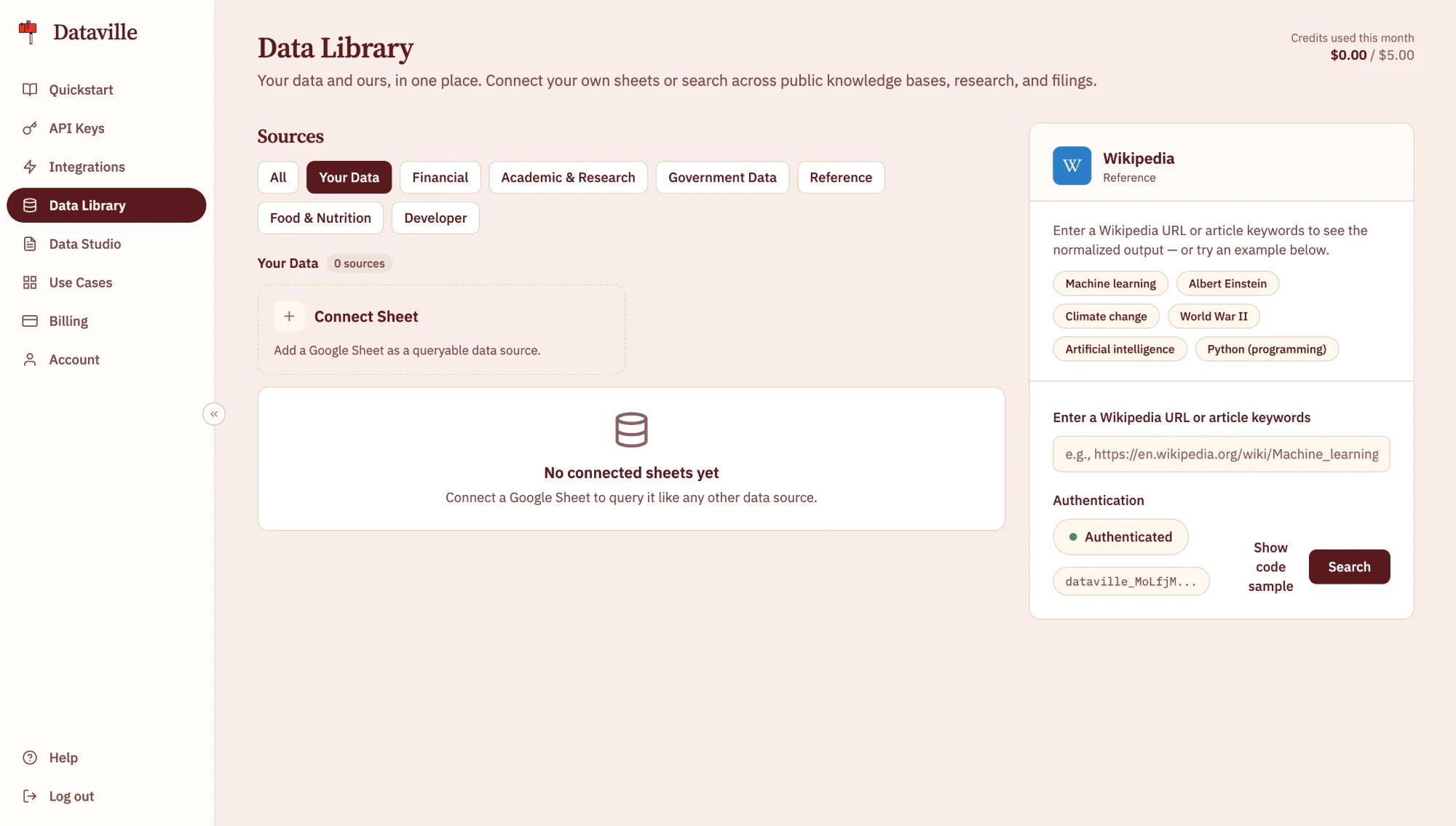 Once the first sync finishes, your sheet appears as a card under **Your Data**, and you can query it as a table named `my_competitors`.
Dataville re-reads the sheet every six hours. If you change the list and want the table updated sooner, select the sheet under **Your Data** and click **Sync now**. To learn more about syncing, see [Connected data](/connected-data).
Open [Data Studio](https://app.dataville.com/data-studio) and scroll to the SQL Query Playground.
Once the first sync finishes, your sheet appears as a card under **Your Data**, and you can query it as a table named `my_competitors`.
Dataville re-reads the sheet every six hours. If you change the list and want the table updated sooner, select the sheet under **Your Data** and click **Sync now**. To learn more about syncing, see [Connected data](/connected-data).
Open [Data Studio](https://app.dataville.com/data-studio) and scroll to the SQL Query Playground.
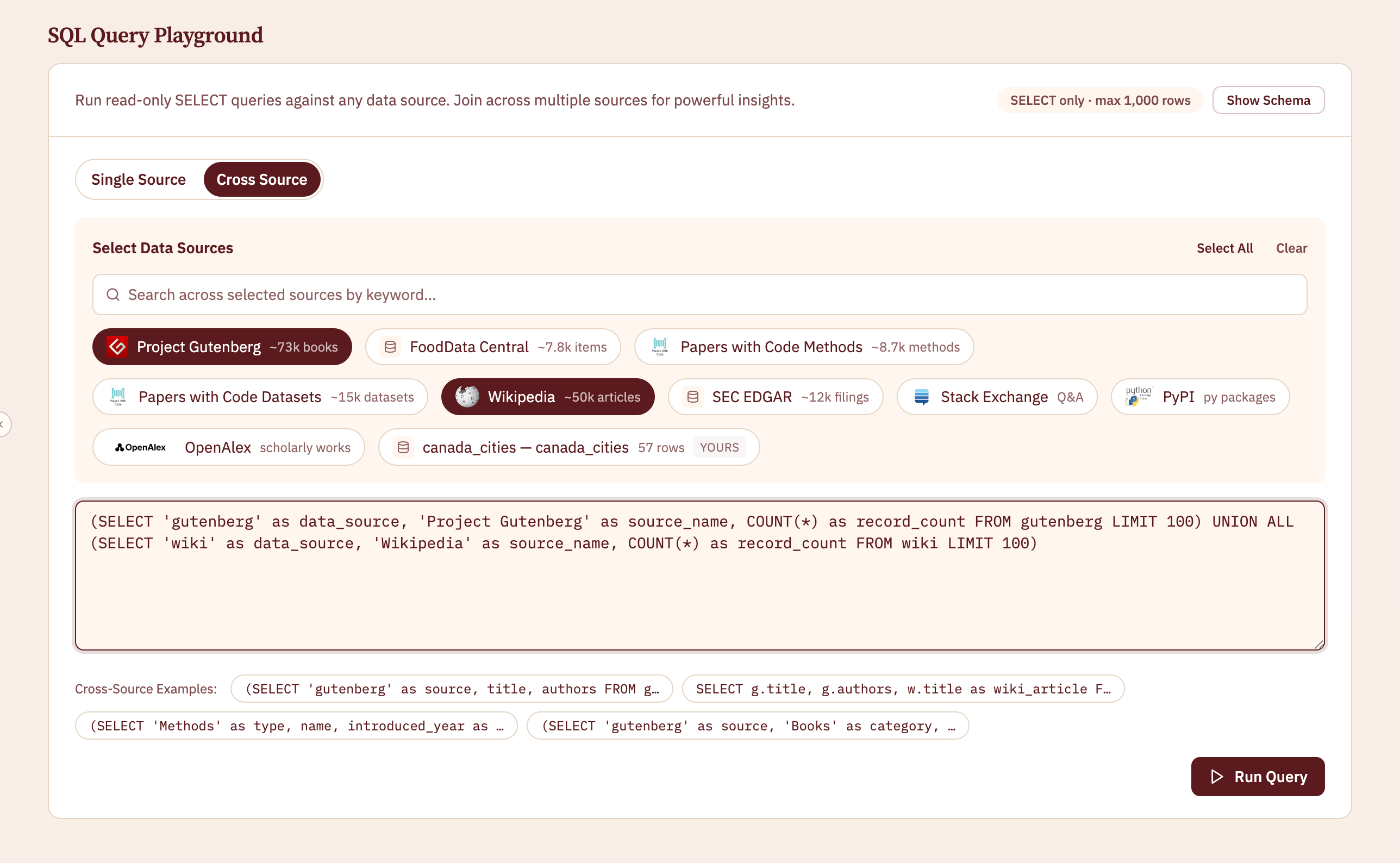 Enter this query and click **Run Query**. The playground includes your sheet whenever a query names `my_competitors`. The query returns each competitor's most recent 10-K or 10-Q, with the revenue it reports:
```sql theme={null}
SELECT
competitors.company,
filings.form_type,
filings.filing_date,
-- body is the filing's text, which lists its headline figures and the dates they cover.
regexp_extract(filings.body, 'Revenue: ([^\n]*)', 1) AS revenue,
regexp_extract(filings.body, 'period ([^,]*)', 1) AS revenue_period,
filings.document_url
FROM my_competitors AS competitors
-- Match each row of your sheet to that company's filings by the SEC filer name.
JOIN edgar AS filings ON filings.company_name = competitors.company
-- 10-Ks and 10-Qs are the filings that report results.
WHERE filings.form_type IN ('10-K', '10-Q')
-- Keep one row per company: the report with the newest filing date.
QUALIFY ROW_NUMBER() OVER (
PARTITION BY competitors.company
ORDER BY filings.filing_date DESC
) = 1
ORDER BY competitors.company
LIMIT 50;
```
`regexp_extract` reads the revenue and its dates out of the filing's text, and `QUALIFY` keeps the first row for each company. For the example competitors, the results have these rows, shown without the `document_url` column:
| company | form\_type | filing\_date | revenue | revenue\_period |
| - | - | - | - | - |
| Floor & Decor Holdings, Inc. | 10-Q | 2026-07-30 | \$2.40B | 2025-12-26 to 2026-06-25 |
| HOME DEPOT, INC. | 10-Q | 2026-08-25 | \$89.63B | 2026-02-02 to 2026-08-02 |
| LOWES COMPANIES INC | 10-Q | 2026-08-27 | \$49.03B | 2026-01-31 to 2026-07-31 |
Each figure covers the first six months of that company's fiscal year, and the fiscal years start on different dates. A company whose most recent report is a 10-K shows a full year, so check `revenue_period` before you compare two figures. The `document_url` column links each row to its filing on sec.gov. To save the table for your report, click **Download CSV**.
If a competitor is missing, compare its name in the sheet with the filer name in Claude's answer. If the names match, ask Claude about the company again and run the query again.
To profile a real client, look up its competitors by ticker with the prompt from the first step. Then replace the rows in your Competitors tab with the filer names from Claude's answer. The comparison table matches your sheet to the filings by name, and only an exact match counts.
Under **Your Data** on the Data Library page, select the sheet and click **Sync now**, then run the comparison query again.
## Next steps
You can run the same query from code, or download the filings for a report.
Run the same query from the API by passing your sheet's id.
Download the filings table as CSV or Parquet.
This documentation is built and hosted on [Mintlify](https://mintlify.com), a developer documentation platform.
Enter this query and click **Run Query**. The playground includes your sheet whenever a query names `my_competitors`. The query returns each competitor's most recent 10-K or 10-Q, with the revenue it reports:
```sql theme={null}
SELECT
competitors.company,
filings.form_type,
filings.filing_date,
-- body is the filing's text, which lists its headline figures and the dates they cover.
regexp_extract(filings.body, 'Revenue: ([^\n]*)', 1) AS revenue,
regexp_extract(filings.body, 'period ([^,]*)', 1) AS revenue_period,
filings.document_url
FROM my_competitors AS competitors
-- Match each row of your sheet to that company's filings by the SEC filer name.
JOIN edgar AS filings ON filings.company_name = competitors.company
-- 10-Ks and 10-Qs are the filings that report results.
WHERE filings.form_type IN ('10-K', '10-Q')
-- Keep one row per company: the report with the newest filing date.
QUALIFY ROW_NUMBER() OVER (
PARTITION BY competitors.company
ORDER BY filings.filing_date DESC
) = 1
ORDER BY competitors.company
LIMIT 50;
```
`regexp_extract` reads the revenue and its dates out of the filing's text, and `QUALIFY` keeps the first row for each company. For the example competitors, the results have these rows, shown without the `document_url` column:
| company | form\_type | filing\_date | revenue | revenue\_period |
| - | - | - | - | - |
| Floor & Decor Holdings, Inc. | 10-Q | 2026-07-30 | \$2.40B | 2025-12-26 to 2026-06-25 |
| HOME DEPOT, INC. | 10-Q | 2026-08-25 | \$89.63B | 2026-02-02 to 2026-08-02 |
| LOWES COMPANIES INC | 10-Q | 2026-08-27 | \$49.03B | 2026-01-31 to 2026-07-31 |
Each figure covers the first six months of that company's fiscal year, and the fiscal years start on different dates. A company whose most recent report is a 10-K shows a full year, so check `revenue_period` before you compare two figures. The `document_url` column links each row to its filing on sec.gov. To save the table for your report, click **Download CSV**.
If a competitor is missing, compare its name in the sheet with the filer name in Claude's answer. If the names match, ask Claude about the company again and run the query again.
To profile a real client, look up its competitors by ticker with the prompt from the first step. Then replace the rows in your Competitors tab with the filer names from Claude's answer. The comparison table matches your sheet to the filings by name, and only an exact match counts.
Under **Your Data** on the Data Library page, select the sheet and click **Sync now**, then run the comparison query again.
## Next steps
You can run the same query from code, or download the filings for a report.
Run the same query from the API by passing your sheet's id.
Download the filings table as CSV or Parquet.
This documentation is built and hosted on [Mintlify](https://mintlify.com), a developer documentation platform.