> ## Documentation Index
> Fetch the complete documentation index at: https://docs.dataville.com/llms.txt
> Use this file to discover all available pages before exploring further.
# Quickstart: API
> Create an API key and make your first Dataville request in a few minutes.
Getting started with Dataville takes just a few minutes. This guide will walk you through getting an API key and making your first request to Dataville's [search a data source](/api-reference/data-sources/search-a-data-source) endpoint.
Sign up for a Dataville account. It's free to get started.
Sign-up for free.
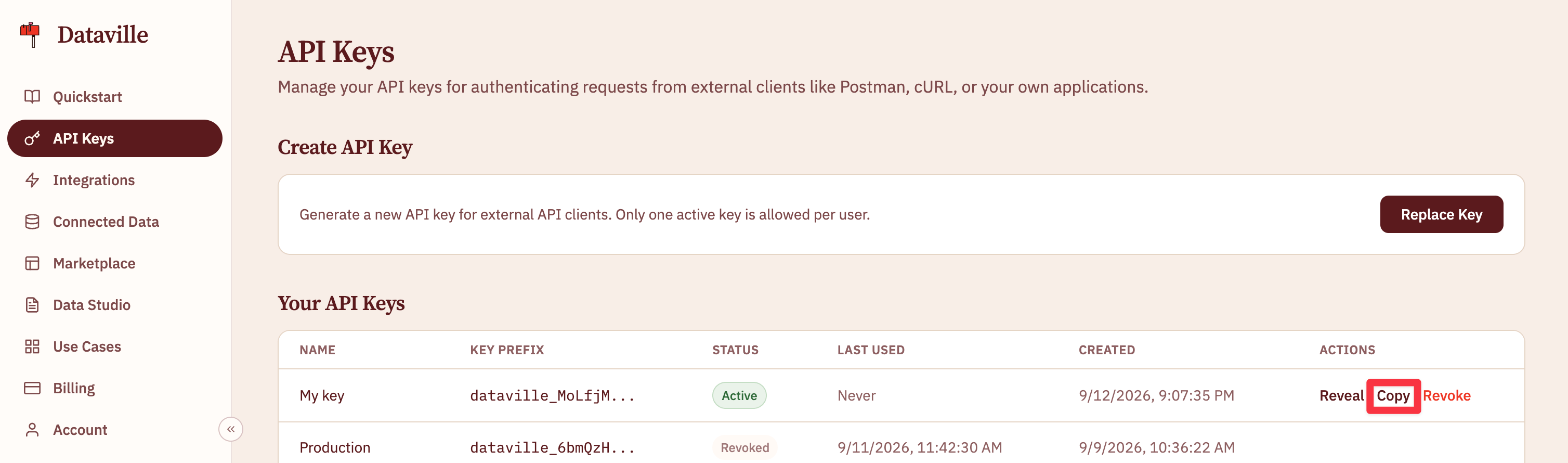
An API key is automatically generated for you when you create a Dataville account. You can find it on the [API keys page](https://app.dataville.com/api-keys). Each account has one active key at a time.
 Search a source by putting its name and your keywords in the path, and send your key in the `Authorization` header. This request asks the `arxiv` source for a paper by its arXiv id:
```bash cURL theme={null}
curl "https://api.dataville.com/arxiv/1706.03762" \
-H "Authorization: Bearer $DATAVILLE_API_KEY"
```
```javascript JavaScript (fetch) theme={null}
const response = await fetch(
"https://api.dataville.com/arxiv/1706.03762",
{ headers: { Authorization: `Bearer ${process.env.DATAVILLE_API_KEY}` } },
);
const result = await response.json();
```
```python Python (requests) theme={null}
import os, requests
response = requests.get(
"https://api.dataville.com/arxiv/1706.03762",
headers={"Authorization": f"Bearer {os.environ['DATAVILLE_API_KEY']}"},
)
result = response.json()
```
To learn more about searching data sources, including every parameter and the sources you can pass, see the [search a data source](/api-reference/data-sources/search-a-data-source) API reference.
Dataville's API will return the most relevant result from your selected data source. Every source returns data in the same format, so the code you write to read it works for all of them.
```json theme={null}
{
"status": "success",
"account_state": "authenticated",
"data": {
"id": "arxiv_1706.03762",
"title": "Attention Is All You Need",
"body": "Authors: Ashish Vaswani, Noam Shazeer, Niki Parmar, Jakob Uszkoreit, Llion Jones … (+3 more)\nPublished: 2017-06-12\nCategories: cs.CL, cs.LG\n\nThe dominant sequence transduction models...",
"source": "arxiv",
"metadata": {
"arxiv_id": "1706.03762",
"abs_url": "http://arxiv.org/abs/1706.03762v7",
"categories": ["cs.CL", "cs.LG"]
}
},
"usage": {
"credits_total": 5,
"credits_remaining": 4.995,
"credits_used": 0.005,
"request_cost": 0.005
}
}
```
The `data.body` field contains the entire result's body and can be passed straight into models. Structured metadata specific to each source is accessible through `data.metadata`.
## Next steps
Now you've queried Dataville's API, you're ready to integrate it into your workflows.
Find the source that has what you need.
Search every source from Claude, Cursor, Windsurf, or VS Code.
Download a whole source instead of one record at a time.
A script that checks companies for new filings every weekday morning.
This documentation is built and hosted on [Mintlify](https://mintlify.com), a developer documentation platform.
Search a source by putting its name and your keywords in the path, and send your key in the `Authorization` header. This request asks the `arxiv` source for a paper by its arXiv id:
```bash cURL theme={null}
curl "https://api.dataville.com/arxiv/1706.03762" \
-H "Authorization: Bearer $DATAVILLE_API_KEY"
```
```javascript JavaScript (fetch) theme={null}
const response = await fetch(
"https://api.dataville.com/arxiv/1706.03762",
{ headers: { Authorization: `Bearer ${process.env.DATAVILLE_API_KEY}` } },
);
const result = await response.json();
```
```python Python (requests) theme={null}
import os, requests
response = requests.get(
"https://api.dataville.com/arxiv/1706.03762",
headers={"Authorization": f"Bearer {os.environ['DATAVILLE_API_KEY']}"},
)
result = response.json()
```
To learn more about searching data sources, including every parameter and the sources you can pass, see the [search a data source](/api-reference/data-sources/search-a-data-source) API reference.
Dataville's API will return the most relevant result from your selected data source. Every source returns data in the same format, so the code you write to read it works for all of them.
```json theme={null}
{
"status": "success",
"account_state": "authenticated",
"data": {
"id": "arxiv_1706.03762",
"title": "Attention Is All You Need",
"body": "Authors: Ashish Vaswani, Noam Shazeer, Niki Parmar, Jakob Uszkoreit, Llion Jones … (+3 more)\nPublished: 2017-06-12\nCategories: cs.CL, cs.LG\n\nThe dominant sequence transduction models...",
"source": "arxiv",
"metadata": {
"arxiv_id": "1706.03762",
"abs_url": "http://arxiv.org/abs/1706.03762v7",
"categories": ["cs.CL", "cs.LG"]
}
},
"usage": {
"credits_total": 5,
"credits_remaining": 4.995,
"credits_used": 0.005,
"request_cost": 0.005
}
}
```
The `data.body` field contains the entire result's body and can be passed straight into models. Structured metadata specific to each source is accessible through `data.metadata`.
## Next steps
Now you've queried Dataville's API, you're ready to integrate it into your workflows.
Find the source that has what you need.
Search every source from Claude, Cursor, Windsurf, or VS Code.
Download a whole source instead of one record at a time.
A script that checks companies for new filings every weekday morning.
This documentation is built and hosted on [Mintlify](https://mintlify.com), a developer documentation platform.