
Browsing the catalog
Dataville’s catalog of sources is on the Data Library page. Each card shows what the source covers and its price per request, which depends on your plan. Click a card to open its search panel and run a test search before you write any code.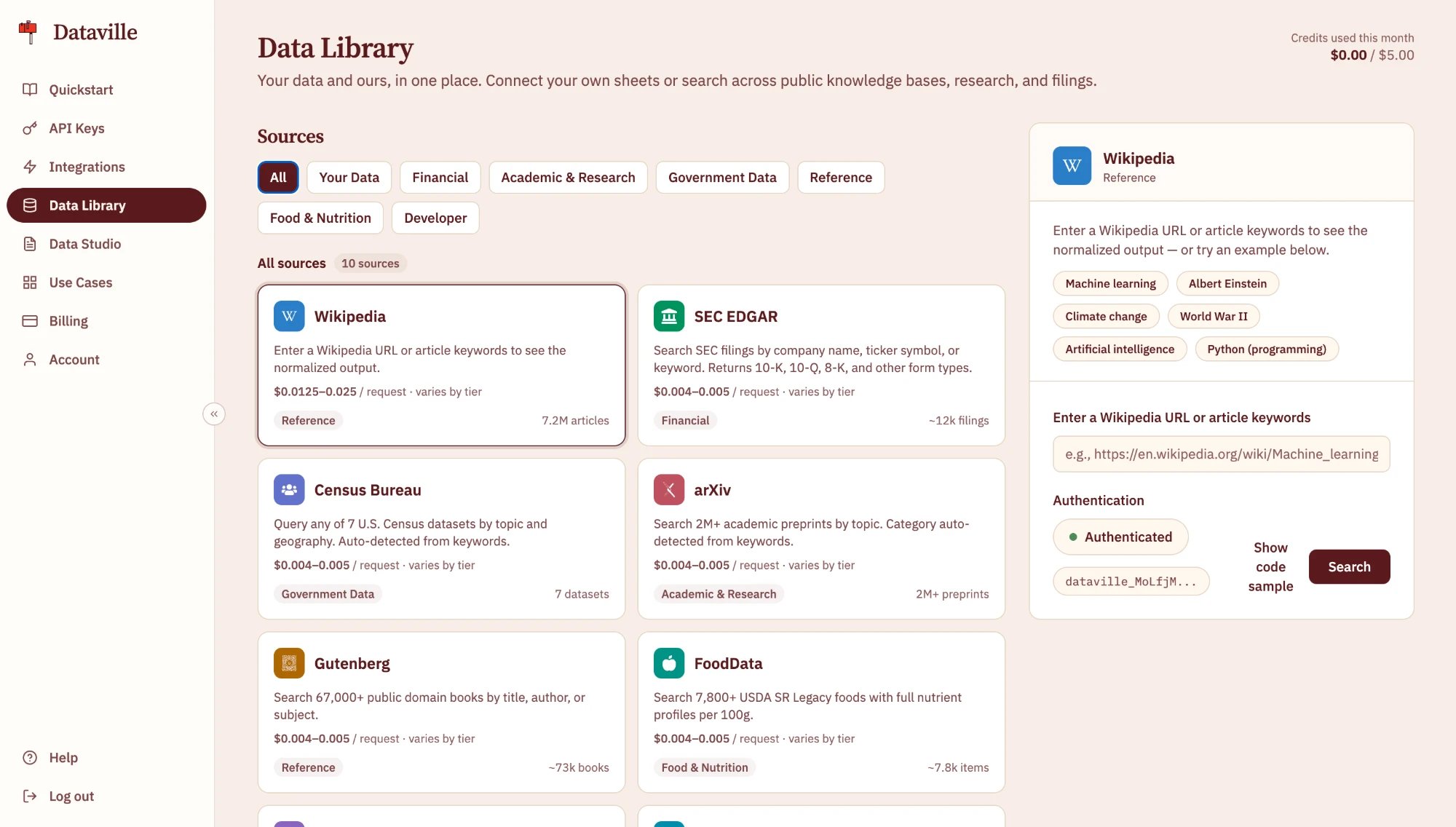
Searching a source
You can get a record out of a source with a keyword search, by pasting a link, or from an MCP tool in your editor or assistant. A search returns the most relevant result from the source you name, so search for a paper’s title, a company’s ticker, or a package name.Search a data source
The endpoint, its parameters, and example responses.
Fetch an article by pasting its URL
Paste a link onto the API host and get the article back.
Connect an AI tool
The same search as an MCP tool in your editor or assistant.
Checking a license
Each source’s license is listed on the public source list. Most are public domain or openly licensed, and some require attribution when you display their content. Check the license before you show or redistribute results, and keep thesource and metadata fields from each result so you can attribute it.
Downloading and querying sources
Most sources are also available as tables. Tables for sources Dataville fetches on demand hold only the records a lookup has already fetched, so they are smaller than the source itself. List available exports shows which sources are included.Export datasets
Download a source as CSV or Parquet, or read its Parquet straight from DuckDB.
Query with SQL
Run read-only SQL across sources in Data Studio or over the API.