
1
Create an account
Sign up for a Dataville account. It’s free to get started.
Create your Dataville account
Sign-up for free.
2
Get your API key
An API key is automatically generated for you when you create a Dataville account. You can find it on the API Keys page.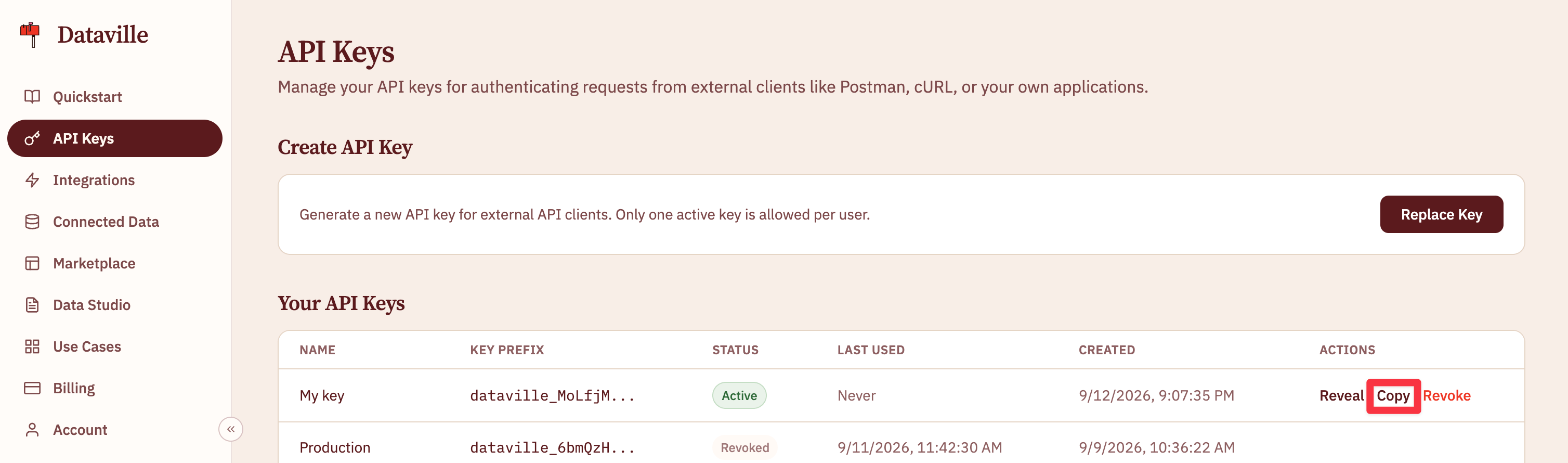
3
Add the connector
In Claude on the web or desktop, go to Customize → Connectors, click +, then Add custom connector, and enter this URL with your API key in place of Dataville appears under Connectors, and you turn it on per chat. Custom connectors are available on every Claude plan. To use Dataville from Claude Code, Cursor, Windsurf, or VS Code, see Connect an AI tool.
YOUR_API_KEY:4
Ask a question
Turn the connector on in a chat and ask something Claude can’t answer from memory:Claude searches the
edgar source and answers with the form type, the filing date, and headline figures from the filing such as revenue and net income. Claude’s response lists a “Search a Dataville data source” step when the connector runs. If you don’t see one, add “use Dataville” to the prompt.Next steps
Now you’ve asked Dataville a question from Claude, the same sources are available from a spreadsheet, from other AI tools, and from code.Profile a client's competitors
Go from a competitor list in a Google Sheet to a comparison table in Data Studio.
Connect an AI tool
Set up Dataville in Claude Code, Cursor, Windsurf, or VS Code.
Quickstart: API
Make the same request from code and read the JSON that comes back.